Welcome to the Photoclay Blog
Meet Photoclay: 12 free image tools that run entirely in your browser. A guide to every tool, how to use it, and the paid features other image sites charge for that are free here.
Photoclay Team · 14 min read
Welcome to the Photoclay blog. This is where we will share guides, tips, and the thinking behind the tools. We want to start with the basics, though: what Photoclay is, what each tool does, how to get the most out of it, and why we think a free image editor can be better than a paid one.
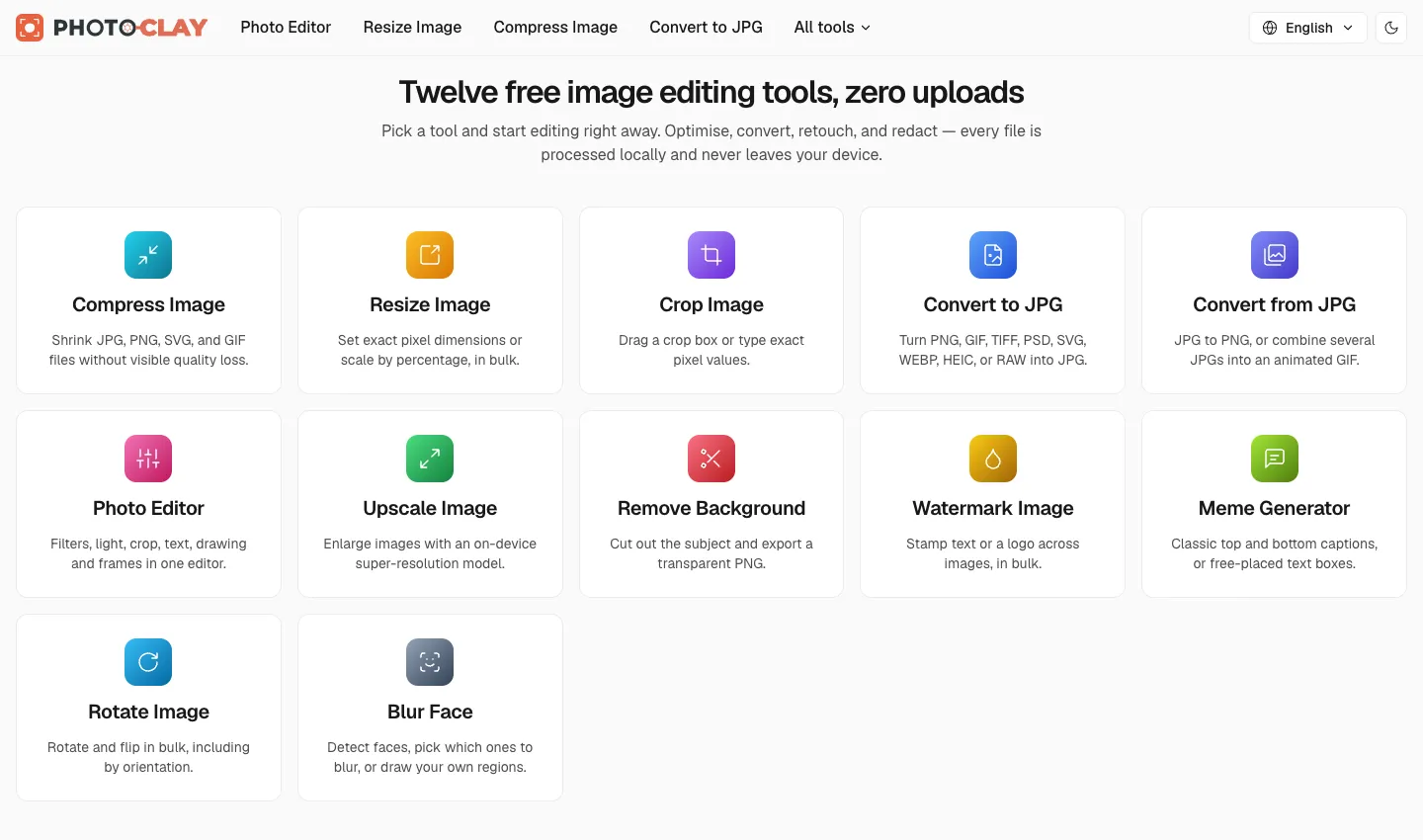
The short version: Photoclay is a set of twelve image tools that run entirely inside your web browser. Compress, resize, crop, convert, edit, upscale, remove backgrounds, add watermarks, make memes, rotate, and blur faces. Your images are never uploaded to a server, because there is no server doing the work. Your own device does all of it.
Why we built Photoclay
Most online image tools work the same way. You pick a file, it is uploaded to a company’s server, the server processes it, and you download the result. That model has two problems.
First, your photo leaves your device. Even when a service promises to delete files after a couple of hours, a copy of your image sat on someone else’s computer for a while. For ID scans, client work, unreleased product shots, or photos of your children, that matters.
Second, someone has to pay for those servers. Processing images, and especially running AI models, costs money. So most services limit the free plan and charge a subscription to remove those limits.
Photoclay takes a different approach. Modern browsers can run serious image-processing code through WebAssembly, WebGL, and Web Workers. So instead of sending your image to the tool, we send the tool to your image. Nothing to upload, nothing to store, nothing to meter.
How Photoclay works, in one minute
Every tool follows the same simple flow:
- Open a tool page. For example, Compress Image or Remove Background.
- Add your images. Drag and drop them onto the page, or click to browse. Many tools accept several files at once.
- Adjust the options. Each tool shows a live preview, so you can see the result before you commit.
- Process and download. Download each file on its own, or grab them all as a single ZIP file generated in your browser.
- Process another. Clear the queue and start again. There is no daily limit to run into.
Behind the scenes, the heavy lifting happens in Web Workers, so the page stays responsive while a batch runs. AI models and codecs only download when you use the tool that needs them.
You can check the privacy claim yourself: open your browser’s developer tools, switch to the Network tab, and process an image. No request carries your file.
The tools, one by one
Photoclay currently has twelve tools in four groups: optimise, edit, convert, and smart (AI-powered). Here is what each one does and how to use it well.
1. Compress Image
Compress Image makes JPG, PNG, WebP, SVG, and GIF files smaller with no visible loss in quality.
What makes it different is control. You can:
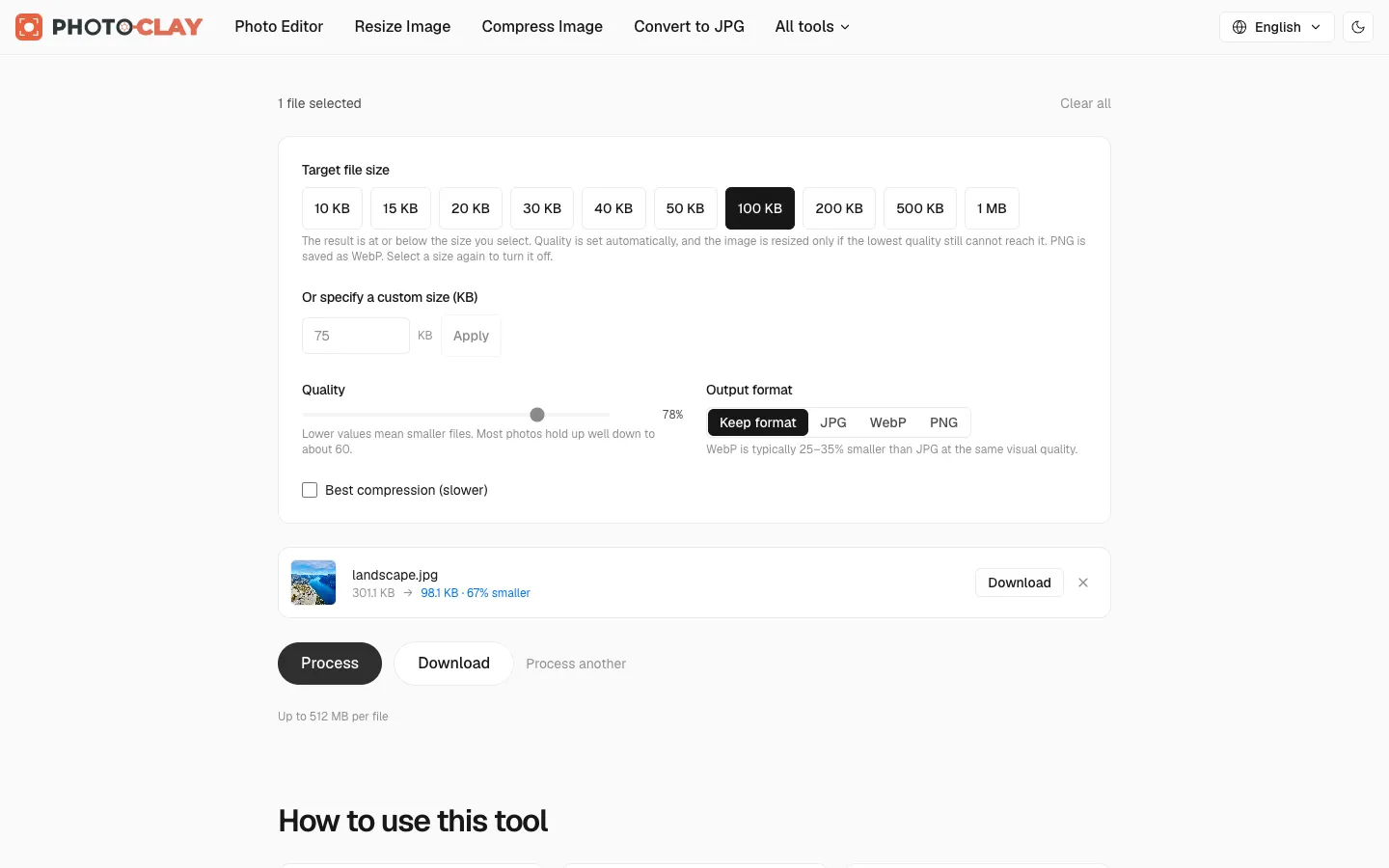
- Pick a target size. Tap a preset (10 KB, 15 KB, 20 KB, 30 KB, 40 KB, 50 KB, 100 KB, 200 KB, 500 KB, or 1 MB) or type your own size in KB. Photoclay finds the highest quality that fits. It only shrinks the image’s dimensions if even the lowest quality cannot reach your target. This is perfect for upload forms with strict limits, like job portals and government websites.
- Set the quality yourself. Prefer manual control? Skip the target and use the quality slider. Most photos still look great at around 60.
- Change the output format. WebP is typically 25–35% smaller than JPG at the same visual quality.
- Use the best compression. Turn on the slower, high-quality encoder for the smallest possible JPG and WebP files.
Before and after sizes are shown for every file, and a whole batch can be downloaded as a ZIP. Compression also strips EXIF metadata, including GPS coordinates. That makes the file smaller and stops it revealing where the photo was taken.
2. Resize Image
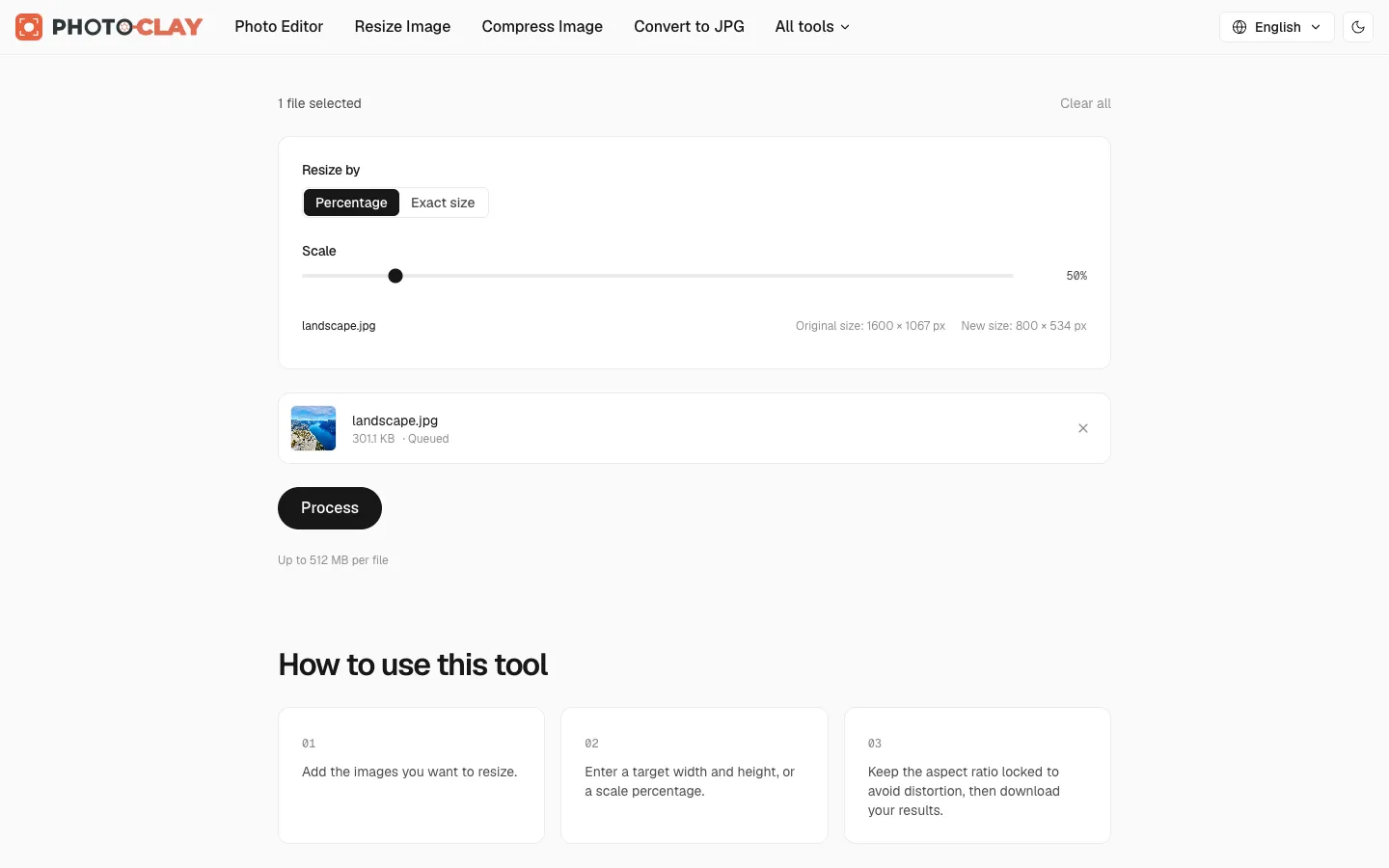
Resize Image changes the dimensions of JPG, PNG, WebP, SVG, and GIF files, one at a time or hundreds at once.
- Resize by percentage or exact pixels. Choose “Percentage” to scale everything by the same amount, or “Exact size” to set a width and height.
- Lock the aspect ratio so nothing gets squashed, or unlock it when you really do need exact dimensions.
- Fit inside or stretch. “Fit inside” keeps the proportions within a bounding box, which is ideal for a mixed batch of portrait and landscape photos. “Stretch” forces the exact size.
- Don’t enlarge small images. One checkbox keeps smaller images at their original size instead of blowing them up.
Photoclay shrinks images in several steps instead of one, which gives noticeably sharper results on detailed photos. Animated GIFs keep their animation and timing.
3. Crop Image
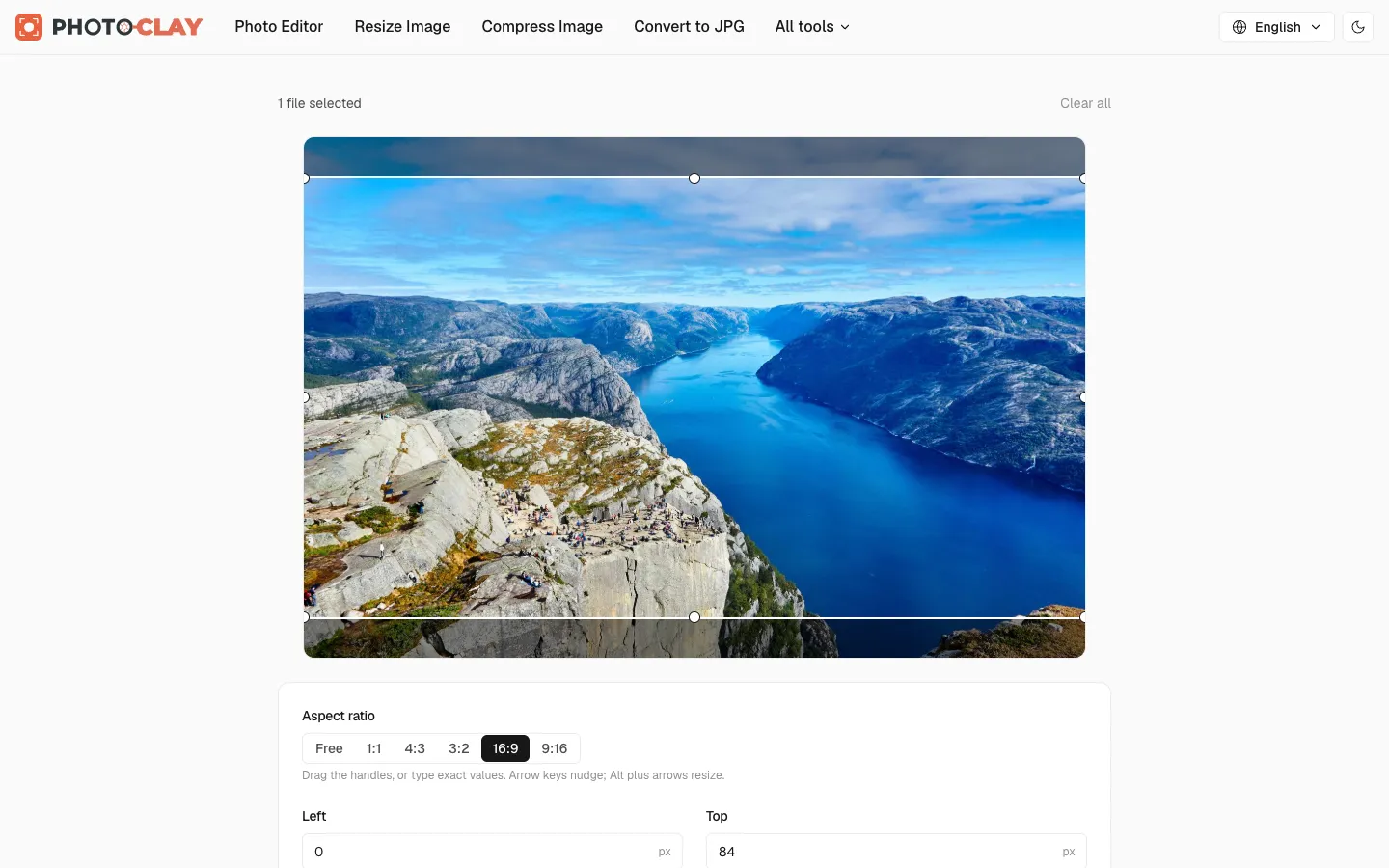
Crop Image trims JPG, PNG, WebP, and GIF images with a visual crop box that stays in sync with exact pixel inputs.
- Drag the handles on the image, or type exact values for left, top, width, and height.
- Pick an aspect ratio: free, square (1:1), 4:3, 3:2, 16:9, or 9:16 for stories and reels.
- Use the keyboard. Arrow keys nudge the crop box, Alt plus the arrows resizes it, and Shift takes bigger steps. Cropping should not require a mouse.
- Crop a batch. When several images share the same dimensions, the same crop applies to all of them.
4. Convert to JPG
Convert to JPG turns almost any image format into a JPG, in bulk: PNG, GIF, TIFF, PSD, SVG, WebP, HEIC, and RAW.
- HEIC from iPhones. Many Windows and Android apps cannot open HEIC. Photoclay decodes it locally, so you can convert a whole camera roll without installing anything.
- Photoshop PSD files are flattened with layer visibility, opacity, and blend modes respected.
- SVG files are rasterised at a width you choose, so a tiny vector file can become a crisp 4000-pixel JPG.
- Transparent areas become a background colour you pick, since JPG has no transparency.
- RAW files (such as Canon CR2/CR3, Nikon NEF, Sony ARW, and Adobe DNG) are supported on a best-effort basis. Photoclay extracts the full-size preview the camera embeds in the file. It does not develop the raw sensor data.
5. Convert from JPG (JPG to PNG or GIF)
Convert from JPG goes the other way.
- JPG to PNG. Convert to a lossless format before further editing, so the image does not degrade every time it is re-saved.
- JPGs to an animated GIF. Drop in a series of photos, drag them into order, set the frame delay, and choose whether the animation loops forever. Great for timelapses, before-and-after loops, and quick product demos, without opening a video editor.
6. Photo Editor
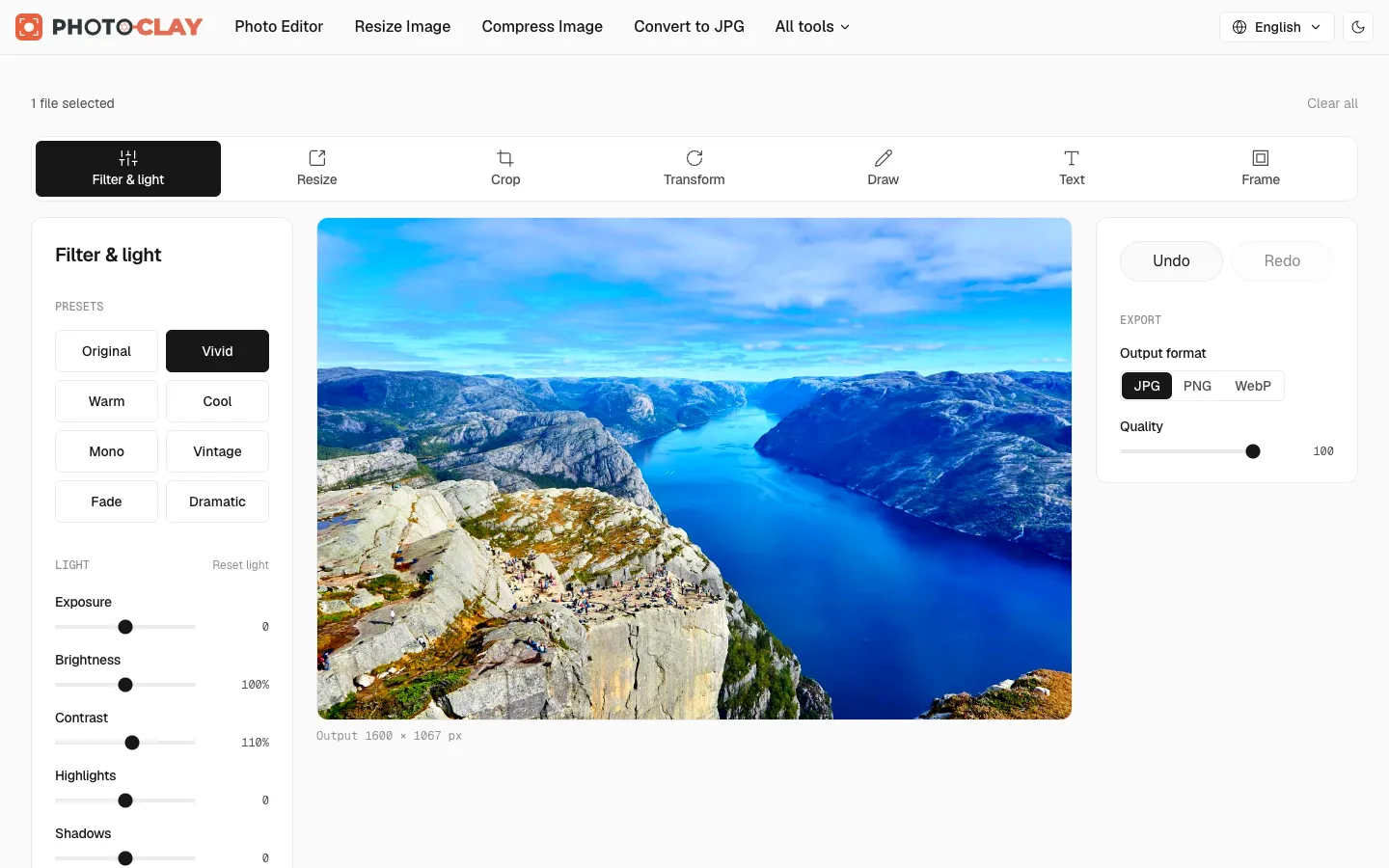
The Photo Editor is a lightweight, non-destructive editor that covers most everyday photo fixes in one place. It has seven tool panels:
- Filter and light. Eight one-click presets (Original, Vivid, Warm, Cool, Mono, Vintage, Fade, Dramatic) and fine controls grouped into Light (exposure, brightness, contrast, highlights, shadows), Colour (saturation, vibrance, temperature, tint, hue), and Effects (sharpness, blur, black and white, sepia).
- Resize the output to exact dimensions.
- Crop with a draggable frame.
- Transform: rotate left or right, flip horizontally or vertically, or straighten a tilted horizon.
- Draw with a pen directly on the photo. The eraser only removes your drawing, never the photo underneath.
- Text layers with several fonts, weight, alignment, outline, and drop shadow. Add as many layers as you like, then drag them into place.
- Frames in nine designs: plain colour, classic wood, vintage gold, torn paper, neon glow, film strip, geometric, striped floral, and collage split.
Every change is stored as a setting on top of your untouched original, with undo and redo always available. When you are happy, export as JPG, PNG, or WebP.
7. Upscale Image
Upscale Image enlarges JPG, PNG, and WebP images by 2×, 3×, or 4× using a neural super-resolution model that runs on your own graphics card through WebGL.
Ordinary enlarging averages neighbouring pixels, giving a bigger, blurrier image. A super-resolution network has learned what sharp edges, hair, and text look like, so it rebuilds believable detail instead. The image is processed in tiles to keep memory use down, and a side-by-side comparison with zoom lets you inspect the result.
The first run downloads the model once; after that it is cached and much faster. If your browser has no WebGL, Photoclay falls back to a high-quality resampler with edge sharpening.
8. Remove Background
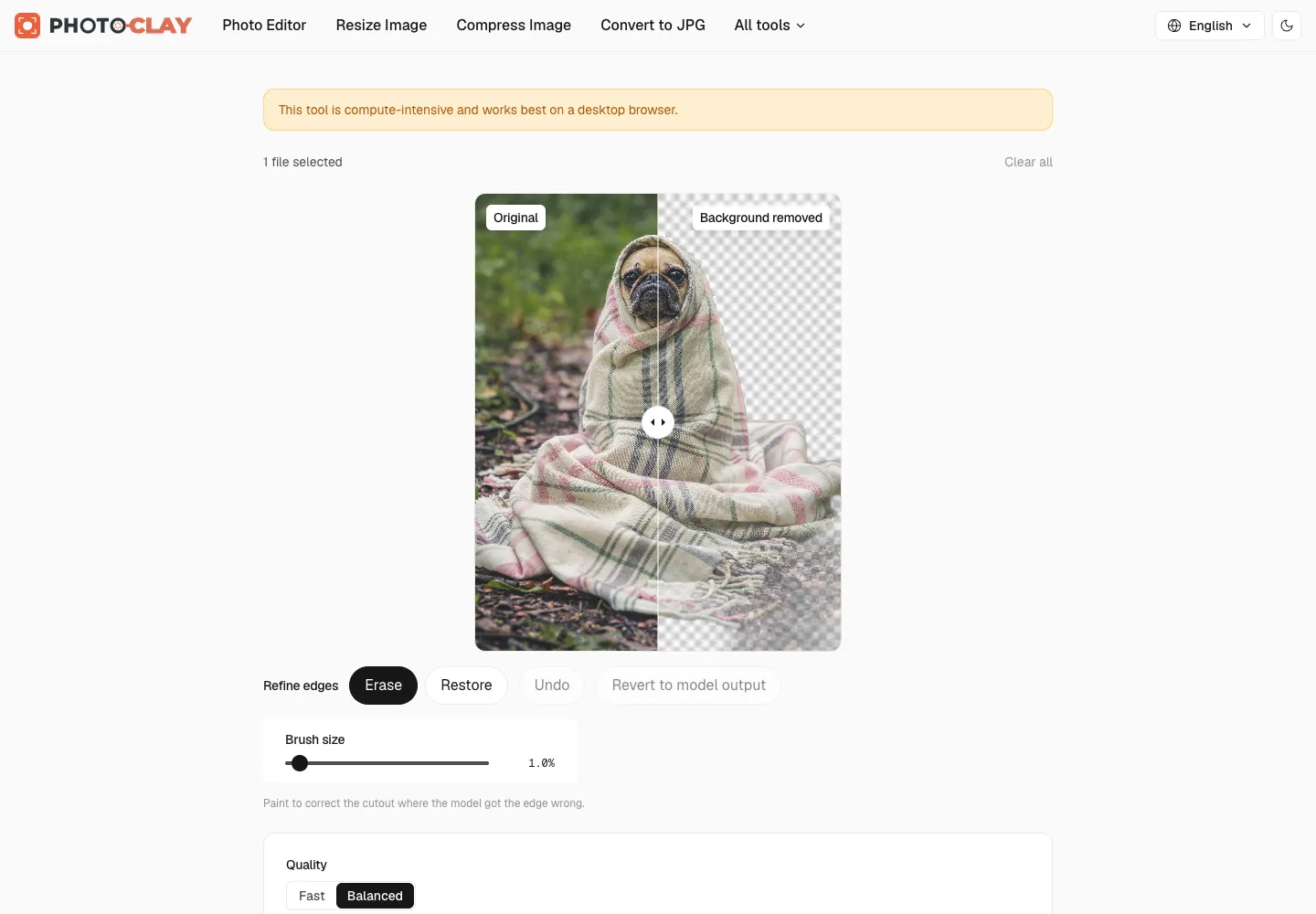
Remove Background isolates the subject of a photo and exports a transparent PNG. It is ideal for product photos, profile pictures, stickers, and presentations.
- Choose a quality mode. “Fast” loads quickly. “Balanced” uses a larger model for cleaner edges.
- Refine the edges. Segmentation models can struggle with fine hair, glass, and low-contrast edges. Use the Restore and Erase brushes to paint the mask exactly where you need it, or revert to the model’s output at any time.
- Compare before and after with a slider.
There are no credits, no watermark, and no “HD download” upsell. Your device does the work, so there is nothing to meter.
9. Watermark Image
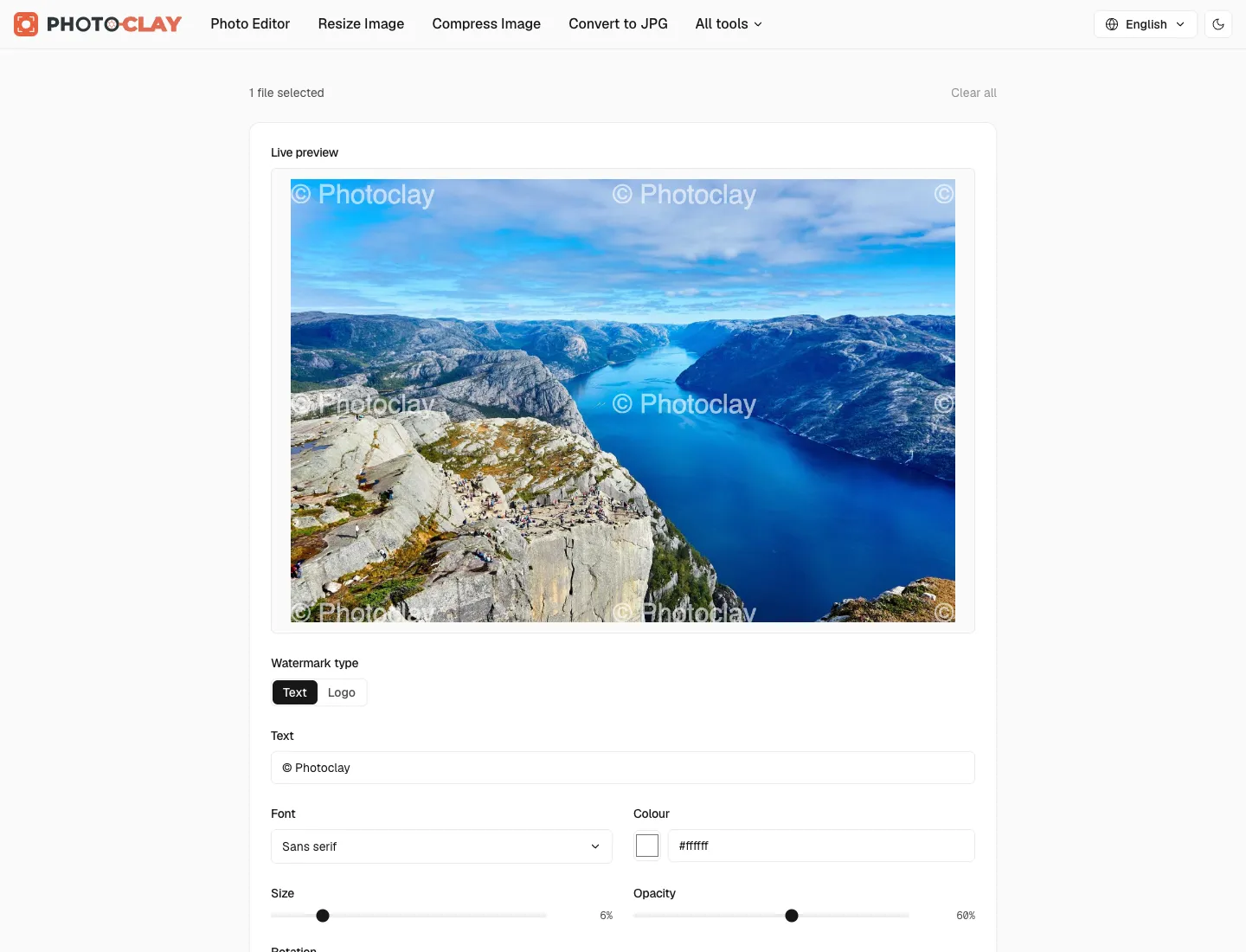
Watermark Image adds a text or logo watermark to a whole batch of photos in one go.
- Text or logo. Type your name or upload a logo image.
- Style it. Choose the font, colour, size, opacity, and rotation.
- Place it. Anchor it to any of nine positions with an adjustable edge margin, or tile it diagonally across the whole image with adjustable spacing. Tiling makes it much harder to crop out.
- Consistent across sizes. The watermark is positioned proportionally, so it lands in the same relative spot on a 600-pixel thumbnail and a 6000-pixel original.
Set it up once, apply it to every file, and download a ZIP.
10. Meme Generator
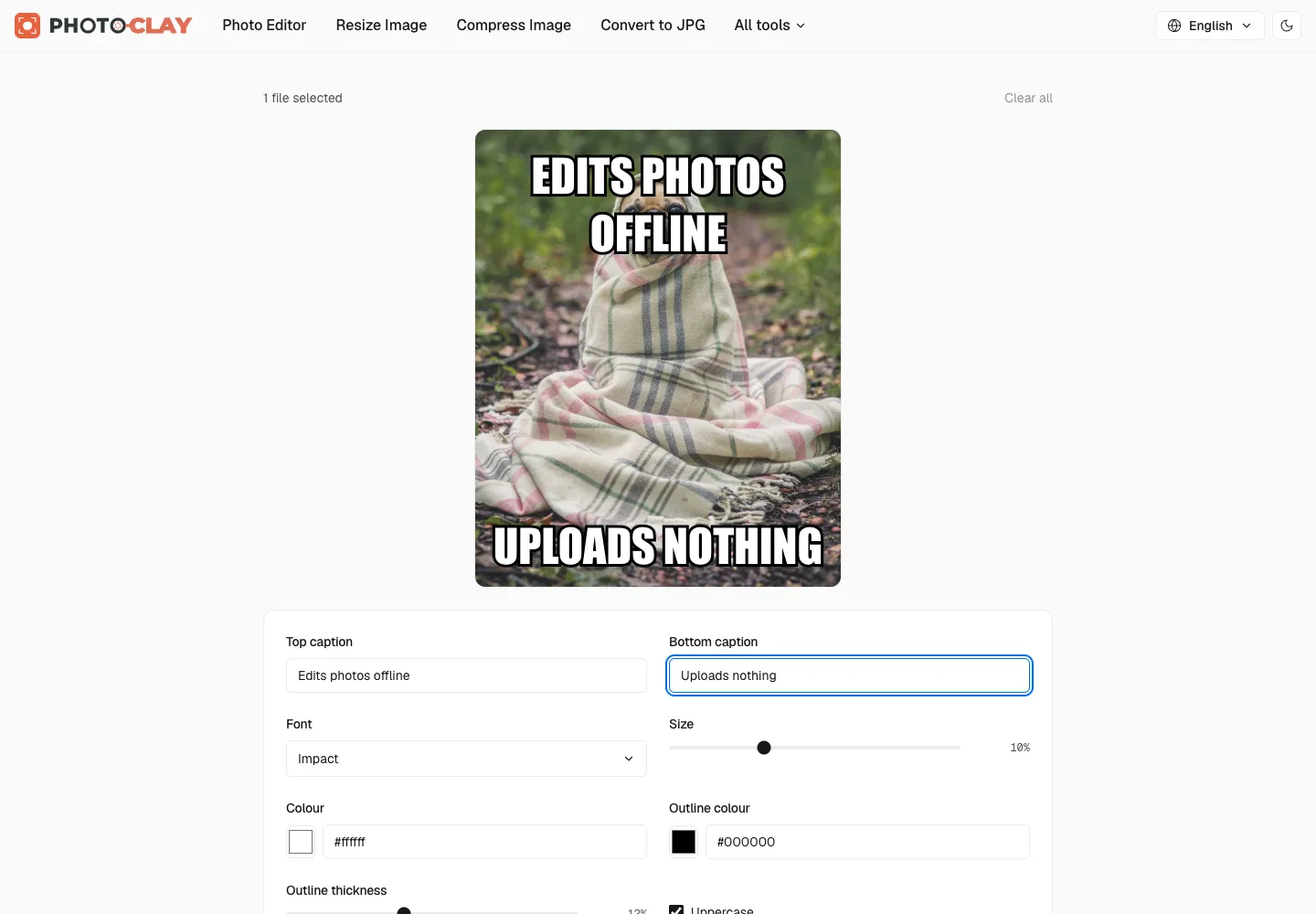
The Meme Generator does the classic top and bottom captions properly.
- Type your top and bottom captions. Text wraps automatically to fit the image.
- Pick from 30+ fonts. The classic Impact meme font is included, plus a wide range of sans serif, serif, display, handwriting, and monospace fonts. The fonts are bundled with the site, so choosing one does not contact any third-party server.
- Control the look. Adjust the text size, colour, outline colour, outline thickness, and uppercase.
- Animated memes. Load an animated GIF and the captions are drawn on every frame.
No watermark is stamped on your meme. There is no service to advertise.
11. Rotate Image
Rotate Image fixes sideways photos in bulk.
- Quarter turns (90°, 180°, 270°) or any custom angle.
- Flip horizontally or vertically.
- Rotate by orientation. Apply the rotation to all images, landscape images only, or portrait images only. This is perfect for a folder of scans where only some pages came out sideways.
- Live preview before you process.
Rotations are applied to the actual pixels and the EXIF orientation tag is removed, so the photo looks the same in every app.
12. Blur Face
Blur Face anonymises photos before you share them.
- Detect faces automatically with an on-device face-detection model.
- Choose which faces to blur. Click any detected face to include or exclude it. Blur the crowd and keep your friend, or the other way round.
- Draw your own areas. Draw a circle or a box over anything the detector does not cover, such as licence plates, house numbers, screens, or name badges.
- Blur or pixelate, with adjustable strength and padding around each region.
Anonymisation is the clearest case for on-device processing. Uploading a photo to blur it hands the unblurred original to a third party. With Photoclay, the identifiable version never leaves your machine, and re-encoding also strips EXIF data such as GPS location.
Features that work across every tool
Beyond the individual tools, a few things are true everywhere on Photoclay:
- No sign-up, no account, no login. Open a page and start working.
- Batch processing with ZIP download in Compress, Resize, Crop, Convert to JPG, Convert from JPG, Watermark, and Rotate.
- Large files. There is no upload limit, because there is no upload. Desktop browsers comfortably handle images up to around 100 megapixels, and Photoclay warns you on phones before you hit their tighter memory limits.
- Works offline. After your first visit, the site is cached on your device. Tools you have already loaded keep working without a signal.
- Installable. Add Photoclay to your home screen or desktop and it behaves like an app.
- Dark mode, matched to your system setting, with a toggle in the header.
- 29 languages, from Arabic and Hindi to Japanese and Ukrainian, including right-to-left layouts.
- Accessible controls. Sliders, crop handles, and drag interactions all have keyboard support and screen-reader labels.
- Free, and no ads.
What other image sites charge for, and what is free on Photoclay
Before building Photoclay, we looked closely at how the most popular online image editors structure their pricing. The pattern is remarkably consistent. A free tier gets you started, and a premium subscription, typically billed monthly or annually, unlocks the rest. Here is what one of the best-known services in the category lists as premium-only features, and how Photoclay compares.
| Typically premium elsewhere | On Photoclay |
|---|---|
| Full access to all tools. Free plans are limited to a subset. | All 12 tools, free. |
| Unlimited processing. Free plans have usage limits. | No quotas, counters, or daily caps. |
| Higher file-size limits per task. | No upload limit. Only your device’s memory sets the ceiling. |
| Larger batches per task. | Batch processing and ZIP download, free. |
| AI tools such as background removal and upscaling. | Remove Background, Upscale Image, and Blur Face run on-device, free. |
| AI credits. A monthly allowance of a couple of thousand, then you stop. | No credits. The model runs on your hardware, so there is nothing to count. |
| Regional file processing. Choose which country’s servers handle your files. | Your files are processed on your own device, in your own room. |
That last row deserves a closer look. Regional processing helps businesses meet data-residency rules when files must be uploaded somewhere. But it solves a problem Photoclay does not have. The most private server region is no server at all.
The same goes for “we delete your files after two hours” promises and encrypted uploads. They are good practices, but they are mitigations for uploading. Photoclay avoids the upload in the first place.
Tips for getting the best results
A few habits that make Photoclay faster and your results better:
- Use a desktop browser for AI tools when you can. Upscaling and background removal run on your GPU, and a laptop is much faster than a phone. The models download once and are cached, so the second run is quicker.
- Resize before you upscale or compress. If a photo is going on a website at 1200 pixels wide, resizing first makes every later step faster and the file smaller.
- Pick WebP for the web, and PNG whenever you need transparency, such as cutouts from Remove Background.
- Review face blurs manually. Face detection struggles with profiles, partly hidden faces, and very small faces in a crowd. Always check the result and draw extra boxes where needed.
Frequently asked questions
Is Photoclay really free? Yes. Every tool is free, with no account, credits, or watermarks. Because the processing runs on your device, we do not pay for servers per image, and that is what makes it possible.
Which browsers are supported? Any recent version of Chrome, Edge, Firefox, or Safari, on desktop or mobile. The AI tools work best with WebGL enabled, which is the default in all modern browsers.
Can I use the results commercially? Yes. The images you create are yours. Photoclay adds no watermark and claims no rights to your output.
What’s next on the blog
This blog will be the home for practical, privacy-first image guides, from compressing a photo to exactly 50 KB for an application form, to converting iPhone HEIC photos on Windows, to choosing between WebP, JPG, and PNG.
Until then, pick a tool and try it out. Start with Compress Image or the Photo Editor, or browse all the tools on the homepage. If you have a suggestion, a bug report, or an idea for a tool we should build next, we would love to hear from you on our contact page.
Thanks for reading, and welcome to Photoclay.